
This page lists every message A+ Tools can show you, grouped by where you meet it. Each entry tells you why it appears, what the buttons do and how to fix or avoid it. The second half covers common problems, such as a missing ribbon tab, greyed-out buttons or a sign-in that doesn't return to Revit, and explains how to send a support request we can act on quickly.
On this page
- How A+ messages work
- Messages: Startup and updates · Licensing and sign-in · Create Drawing · Create Panel Divisions · Redimension Elevation · Settings, profiles and repositories · Transfer Settings
- Troubleshooting
Tip — Use your browser's find function (Ctrl+F) and type a few words from the bold line of the message you see. Each entry below is headed by that exact text. Where you see a word in italics, A+ fills in a name from your project (a curtain wall, a profile, a parameter).
How A+ messages work
All A+ messages use the same window and follow the Revit light or dark theme. Each one is made up of these parts:
- Window title: a short name for the situation (for example Commit Changes?).
- Icon disc: the colour shows the kind of message (see the table below).
- Headline: a short bold line that says what happened. This is the text used in this catalogue.
- Body: regular text with the explanation and, often, what to do next. Lists of settings or file paths appear in a grey box in a fixed-width font.
- Buttons or command links: either buttons along the bottom, or a stacked list of choices. Each choice has a bold title and a grey line that explains it. The highlighted button or link is the default, and Enter chooses it.
- Checkbox (some messages): Apply to all consecutive curtain walls remembers your answer for the rest of the current run, so a Multiple-mode batch isn't interrupted for every wall.
- Technical details: the window can also show a collapsed Technical details section with a Copy details button. No current A+ message uses it. To report a message, take a screenshot instead (see Sending a good support request).
Esc or the window's ✕ picks the Cancel/Close button. On messages with command links, closing the window picks the "safe" choice, which is named in each entry below.
| Kind | Icon | Used for |
|---|---|---|
| Info | blue i | Something you should know. Nothing went wrong. |
| Success | green tick | An action finished. |
| Warning | amber triangle | A problem A+ worked around, or something you need to fix before it can continue. |
| Error | red cross | Something failed and was not done. |
| Confirm | amber question mark | A+ needs your decision before it continues. |
| Credits | amber credit symbol | Your free or trial credits don't cover the run. |
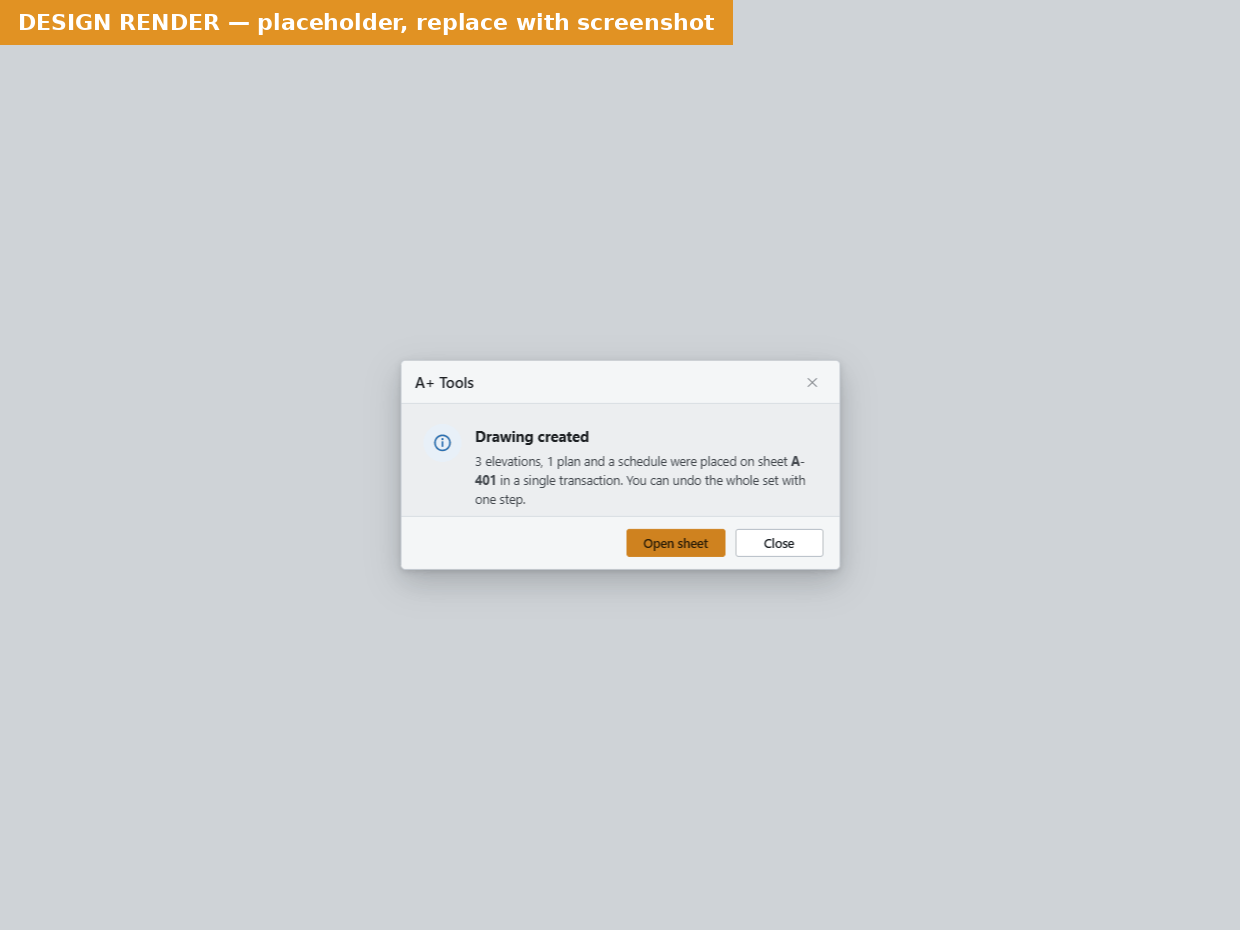 Info: a notice with a single OK button.
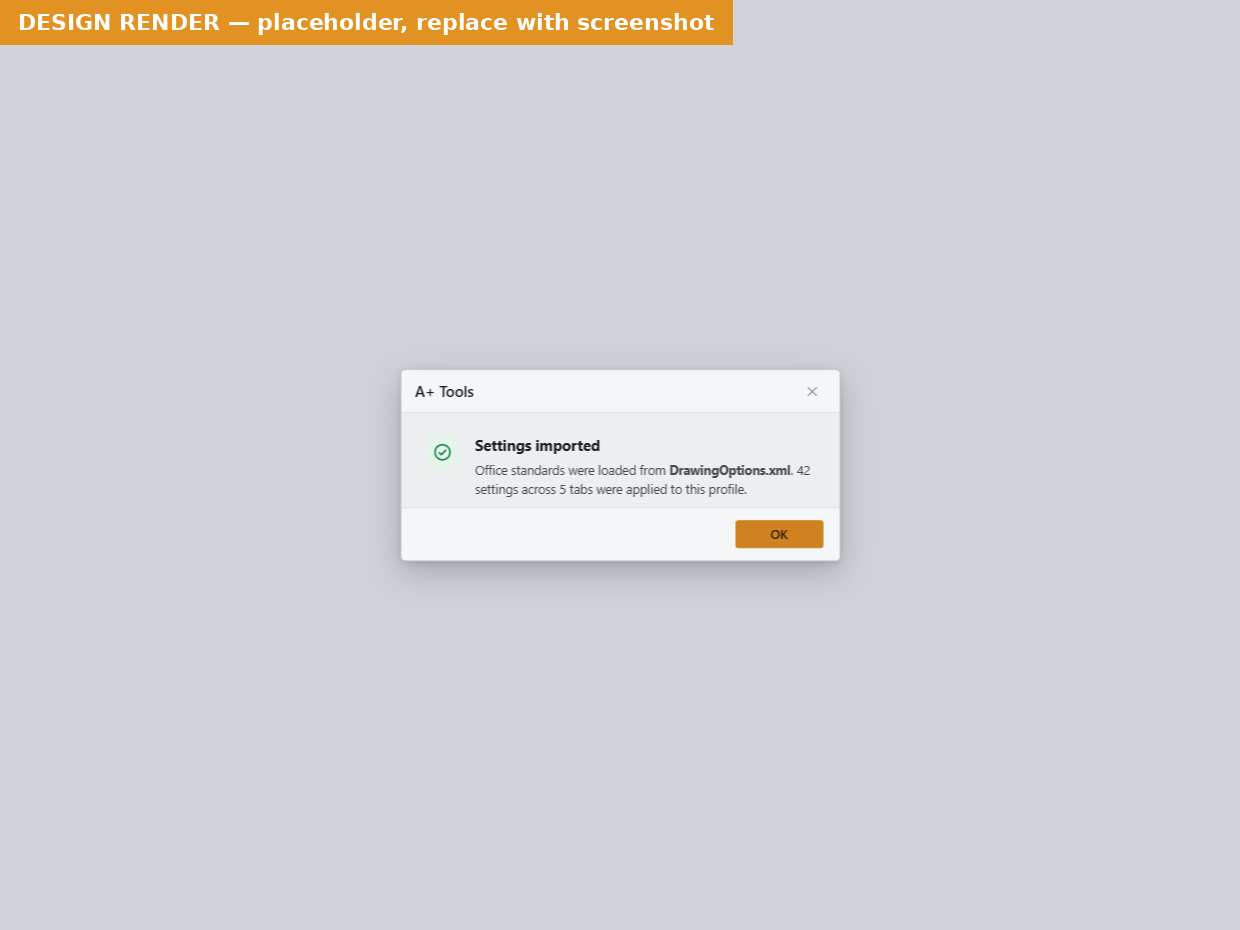 Success: the action finished.
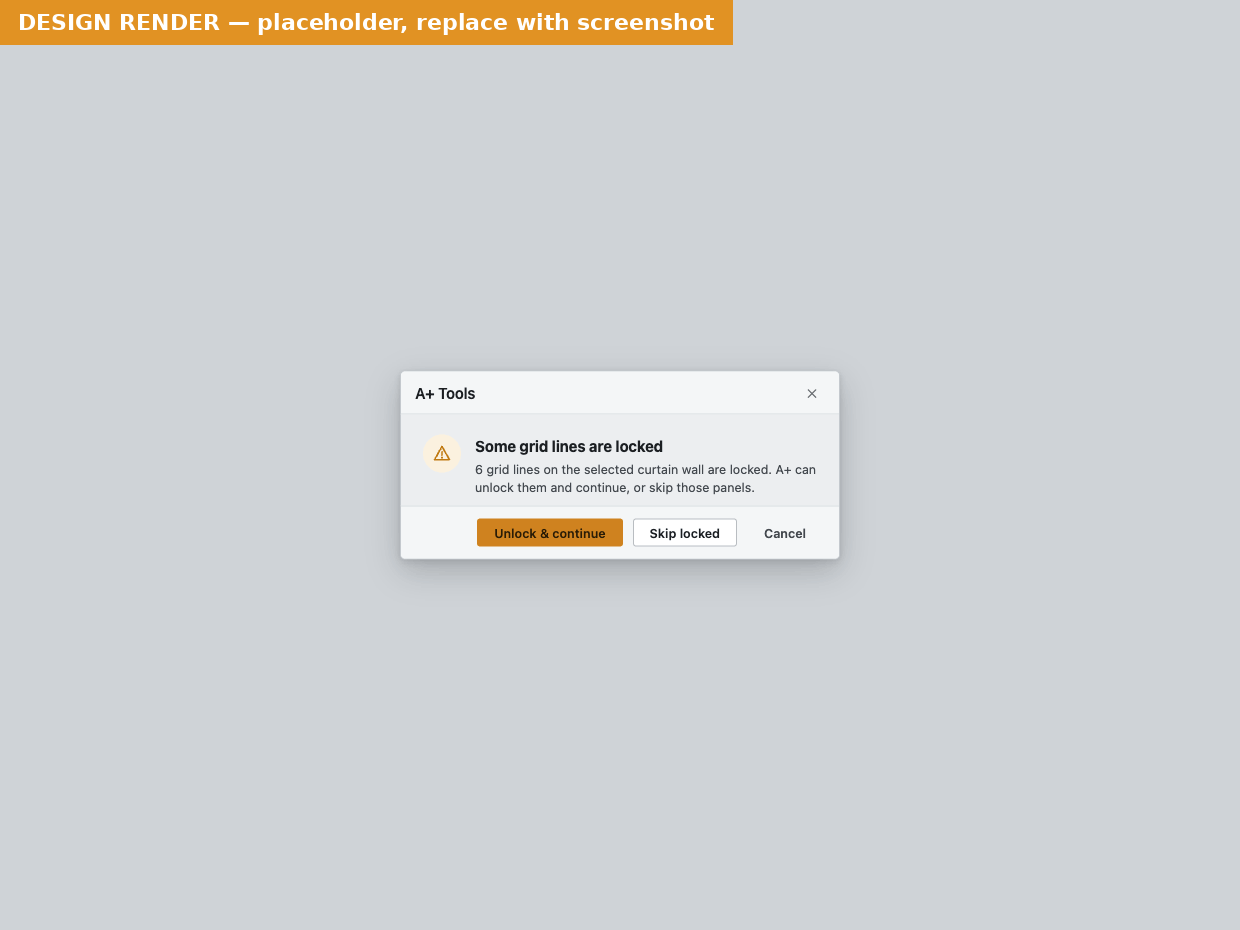 Warning: A+ needs you to deal with something before it continues.
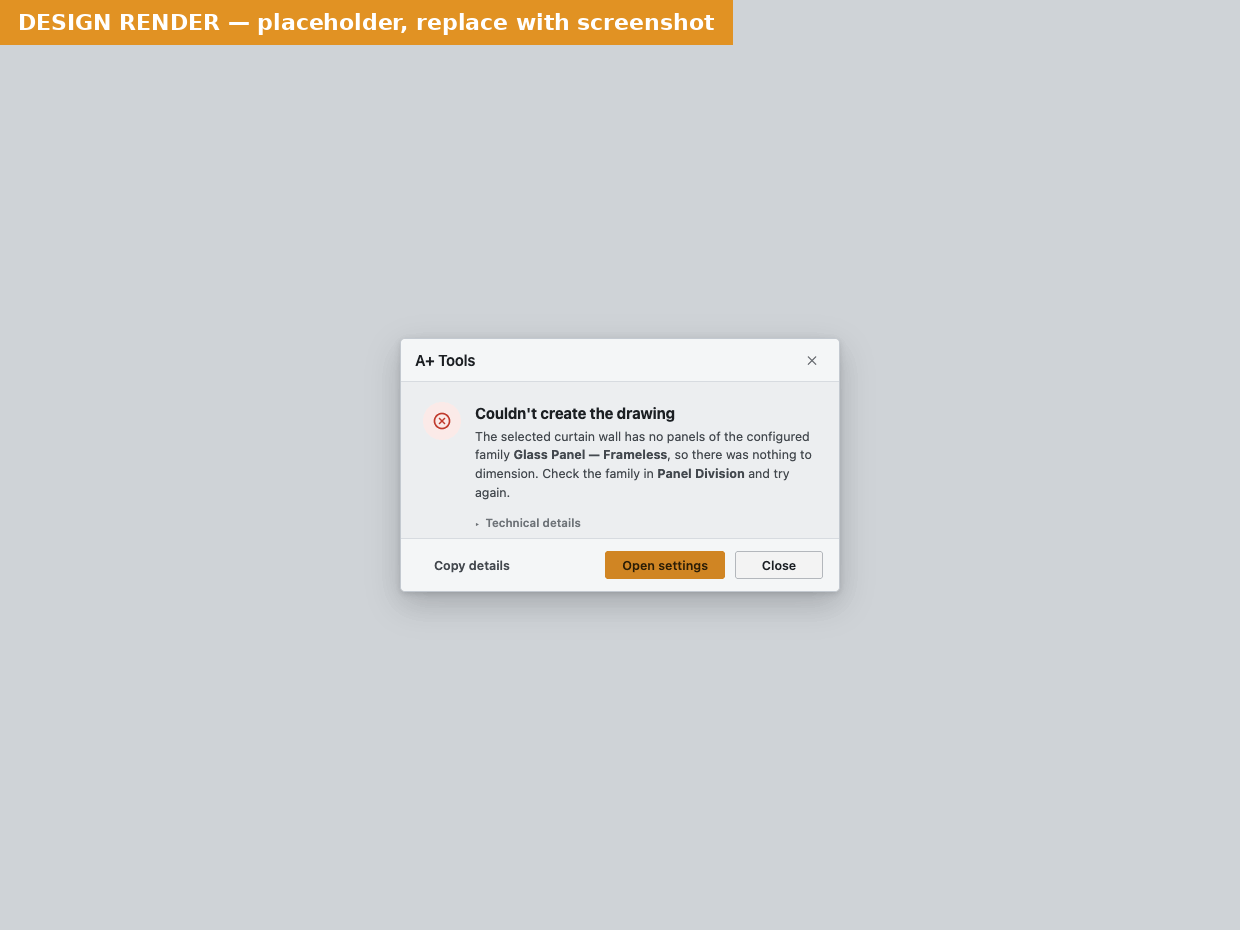 Error: something failed. Here, the settings did not pass validation.
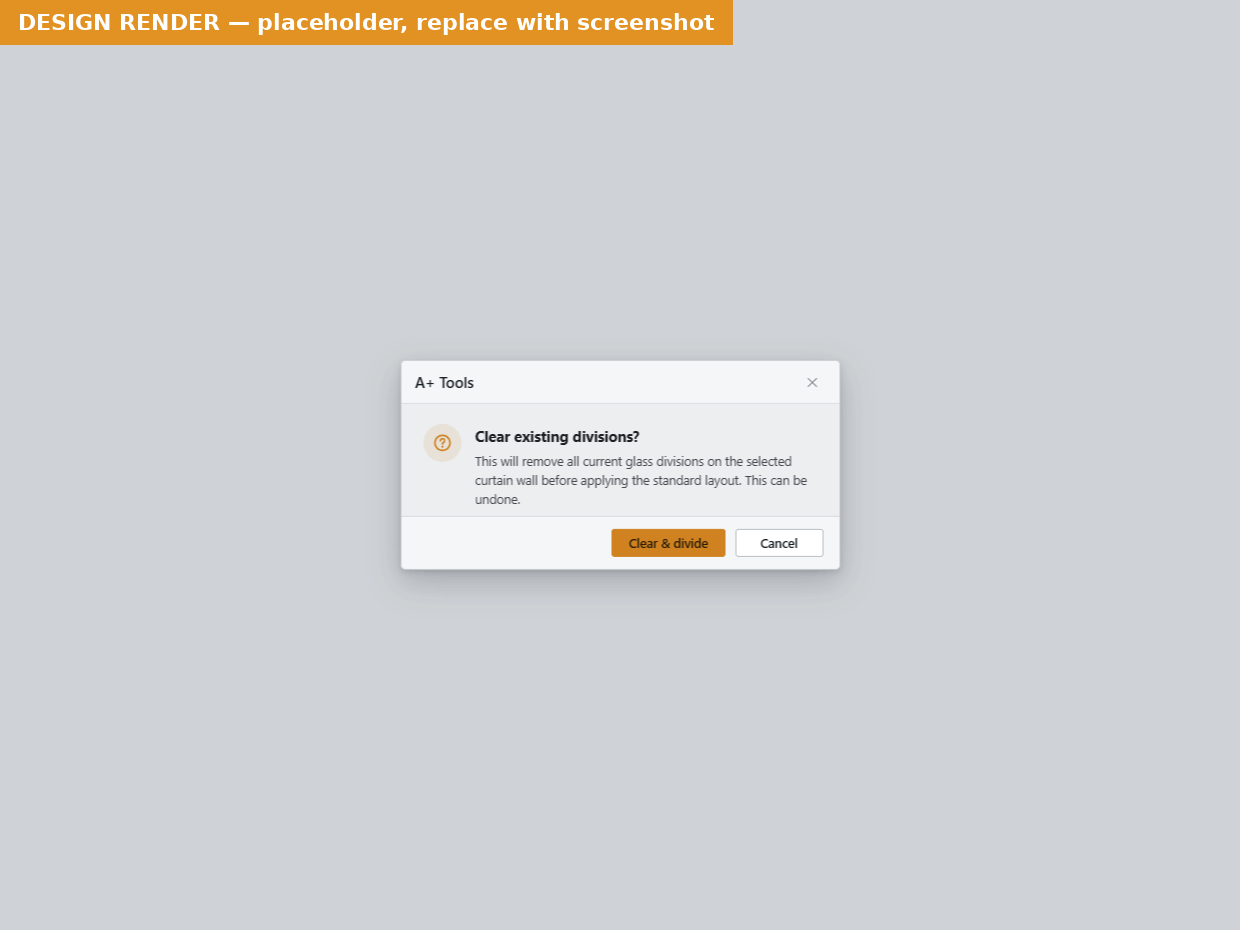 Confirm: A+ asks before it does something you can't easily undo.
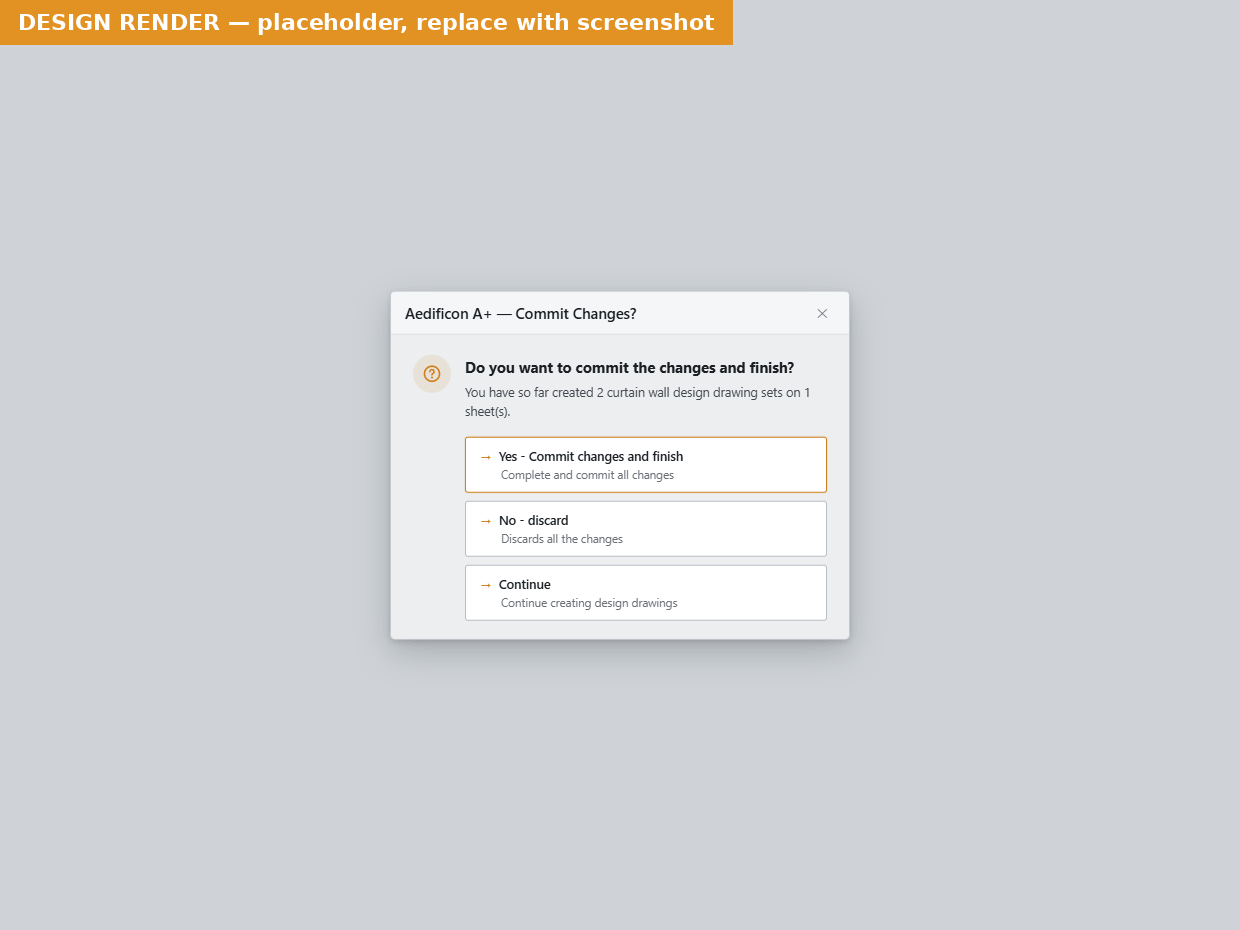 Command links: each choice has a bold title and an explanation. The outlined one is the default.
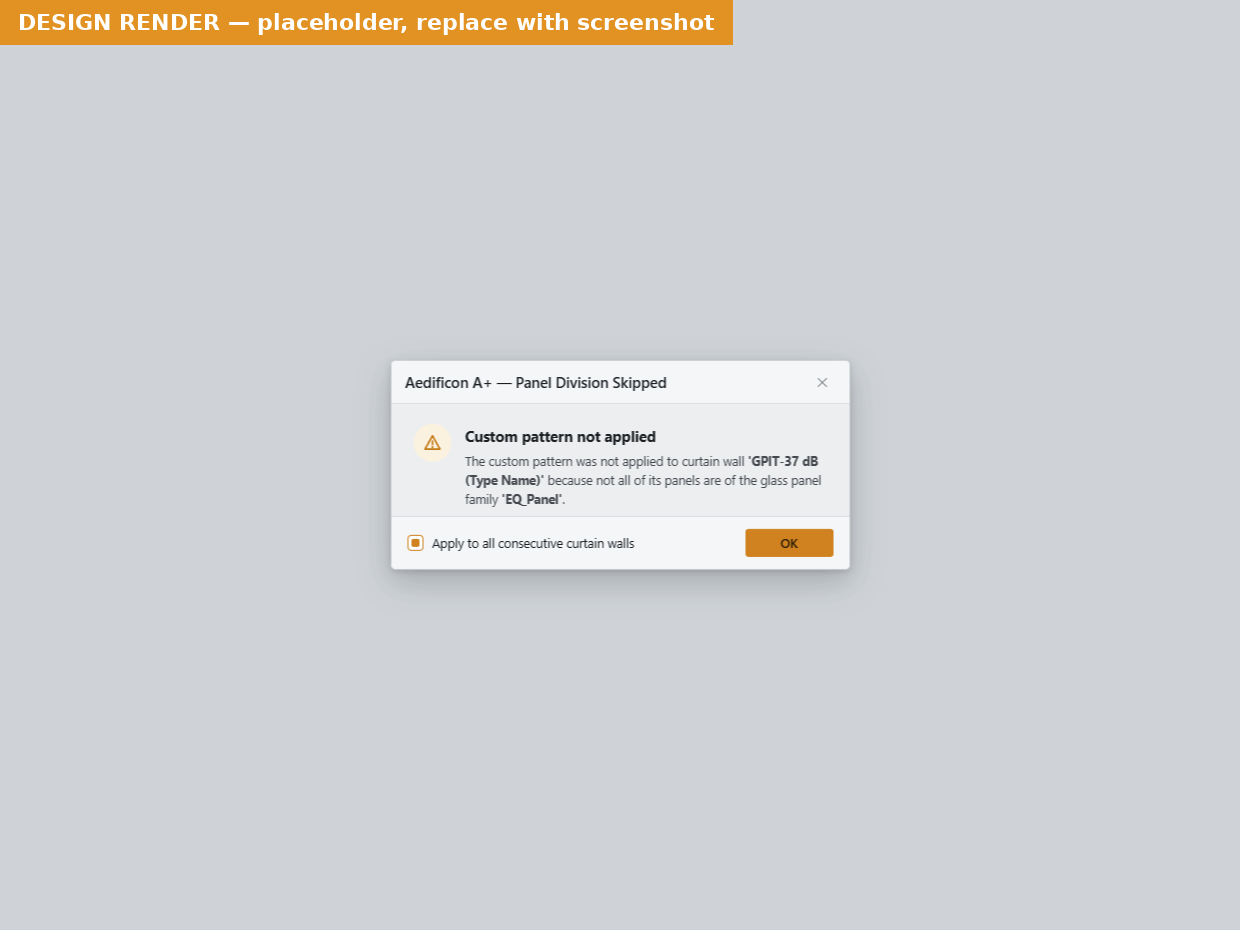 Checkbox variant: tick it to stop this notice for the rest of the run.
Startup and updates
Failed to initialize the A+ plugin.
Kind: Error (a plain Revit message box titled A+ Plugin, followed by the technical reason)
When: Something went wrong while A+ Tools loaded during Revit startup. The A+ Tools tab may be missing or incomplete for this session.
- Close dismisses it.
What to do: Restart Revit. If it happens again, run the A+ Tools installer and choose Repair, then send us a support request with a screenshot of the message and the log file.
This version is no longer supported.
Kind: Error · Title: Update required
When: At Revit startup, if Aedificon has marked your installed version as one that must be replaced. The body names the version to install: Please update to x.y to continue. It appears on every start until you update.
- OK closes the message.
What to do: Open A+ Tools › Check for updates and click Upgrade to download the new installer. Close Revit, then run the installer.
A new version of A+ Tools is available.
Kind: Info · Title: Check for updates
When: At Revit startup when a newer version is published, or when you choose A+ Tools › Check for updates. The body reads Version x is available. You are running y.
- Upgrade opens the new installer for download in your browser. If no download is published yet, it opens the Licence portal instead.
- Remind me again in 30 days (startup only) hides the startup reminder for 30 days. Check for updates always gives you an answer, even during those 30 days.
- Close dismisses the message. It appears again at the next Revit start.
You are up to date.
Kind: Success · Title: Check for updates
When: You chose Check for updates and you already have the latest version. The body shows your version number.
Could not check for updates.
Kind: Warning · Title: Check for updates
When: The update service could not be reached, usually because you're offline or a firewall blocks licensing.aedificon.ai.
What to do: Check your internet connection and try again later.
Licensing and sign-in
The messages in this section can appear when you start any A+ command. To learn how licences, trials and credits work, see Licensing and credits.
The A+ Tools Licence window
This window isn't a message box, but it's where most sign-in problems show up. It opens automatically on the first Revit start with no signed-in account, and whenever you start a command that needs a sign-in. The headline depends on your situation:
| Headline | Meaning |
|---|---|
| Sign in to use A+ Tools | No one is signed in. Use Sign in, Create account or, on an eligible computer, Just get me started on a 14-day trial. |
| Please verify your email address | Your account exists, but its email address hasn't been verified yet. Click the link in the email we sent you, come back and click Sign in. |
| Your subscription has expired. | You're signed in, but the subscription has ended. Renew it in the Licence portal, then sign in again. |
| Your licence is in the grace period. | Your licence still works. Update your billing details to avoid interruption. |
If something goes wrong, a red line appears under the buttons:
| Red text | What to do |
|---|---|
| Sign-in did not complete. Please try again. | The browser was closed, the 5-minute wait ran out, or the sign-in was cancelled. Click Sign in again. See Sign-in doesn't come back to Revit. |
| Sign-in failed: reason | The sign-in service refused the sign-in for the reason shown. Check the account, or contact support. |
| Your subscription has expired — renew it in the licence portal, then sign in again. | Renew in the Licence portal. |
| All A+ Tools OAuth callback ports are in use. Close other applications using ports 53217–53221 and try again. | See Sign-in doesn't come back to Revit. |
| Could not start the trial. Please try again. / Could not reach Aedificon to start your trial. Check your internet connection and try again. | Check your connection and try again. |
| A trial has already been used on this computer or Autodesk account. Sign in or create a free account to continue. | A trial can only be used once per computer and per Autodesk account. Create a free account instead. |
| This computer is already set up with an A+ licence. Sign in to continue. | Sign in with the account that owns that licence. |
| An unexpected error occurred. Please try again. | Try again. If it keeps happening, send a support request. |
After you sign in, the browser page shows You're signed in, and you can close the browser tab. If the page shows Sign-in didn't complete, go back to Revit, where the A+ Tools Licence window explains why.
Out of free credits · Out of daily free credits · Not enough credits today
Kind: Credits (amber)
When: You're on the Free plan or a trial, and your remaining credits don't cover this run. Which headline you see depends on which limit you hit:
- Not enough credits today: you still have credits, but not enough for this tool today (tools cost different amounts). You can run it again tomorrow.
- Out of daily free credits: today's credits are used up, but you have credits left this month.
- Out of free credits: this month's credits (or your trial credits) are used up.
The body gives the exact numbers, for example You don't have enough free credits — 0 remaining today, retry tomorrow. For this month you have 40 credits left out of 100.
- Upgrade opens the billing page of the Licence portal.
- Close dismisses the message. The command doesn't run.
Note — This message can also appear right after a run finishes, if the run turned out to cost more than you had left. The drawings you just made are kept.
Your usage could not be verified.
Kind: Error · Title: Couldn't verify usage
When: A+ couldn't reach the Aedificon licensing service. The Free plan and trials check your credits online before every run, so they can't run offline. The body explains, for example Could not reach Aedificon to verify your free credits. Check your internet connection and try again.
What to do: Check your internet connection (and any proxy or firewall rules for licensing.aedificon.ai), then start the command again. See Working offline.
Unable to verify your A+ Tools licence.
Kind: Error · Title: Licence error
When: The licence check failed unexpectedly, or you signed in but the licence still couldn't be confirmed. The body says Please try again. or gives the reason from the licensing service.
What to do: Try again. If it repeats, sign out and back in (A+ Tools › Log out, then Sign in). If it still fails, send a support request.
Your email address has not been verified.
Kind: Warning · Title: Please verify your email address
When: You signed in from the A+ Tools Licence window, but your account's email address is still unverified.
What to do: Open the verification email from Aedificon, click the link, then return to Revit and sign in again. Check your spam folder if you can't find the email.
A+ Tools is blocked
Kind: Warning
You're signed in, but your licence doesn't allow this run right now. These "blocked" messages share a layout: a button that opens the right page of the Licence portal, Switch account (signs you out and opens the sign-in window so you can use another account), and Close. If the licensing service supplies details, such as the name of the device currently using your licence or when a cooldown ends, they're added at the end of the body.
A+ Tools is blocked has three versions:
| Body | Buttons | What to do |
|---|---|---|
| Your licence does not currently allow running this command. | Open Licence portal · Switch account · Close | Check your licence on the portal dashboard. |
| Your licence requires you to be online to run this command. | Close | Your plan needs an online licence check. Connect to the internet and try again. |
| Your last run could not be charged to your account. Check your internet connection and try again. If this continues, contact support. | Close | See Credits could not be charged. |
Device limit reached
Kind: Warning
When: This computer isn't one of your licence's activated devices, and every device slot is in use.
- Manage devices opens the devices page of the Licence portal. Deactivate a computer you no longer use, then run the command again.
- Switch account / Close work as described under A+ Tools is blocked.
Device change on hold
Kind: Warning
When: Your licence moved to a different computer recently and is in a cooldown period. The body may say when you can activate a new device.
- Manage devices opens the devices page of the Licence portal. Otherwise, try again after the cooldown.
Licence expired
Kind: Warning
When: Your licence has expired.
- Renew opens the billing page of the Licence portal.
No active licence
Kind: Warning
When: The account you're signed in with has no active licence.
- See plans opens the billing page. Use Switch account if you meant to sign in with another account.
Pro feature
Kind: Warning
When: The tool you started is part of the Pro subscription, and your plan doesn't include it.
- Upgrade opens the billing page of the Licence portal.
Licence suspended
Kind: Warning
When: Your licence is suspended, usually because of a billing problem.
- Open Licence portal opens the billing page. Check your payment details there.
Credits could not be charged
Kind: Warning
When: On the Free plan or a trial, a run finished but its credits couldn't be charged to your account (for example, the connection dropped right after the work was done). The work you just created is kept. A+ blocks the next run until the charge goes through. You then see A+ Tools is blocked with Your last run could not be charged to your account.
What to do: Check your internet connection and start a command again. If the block doesn't clear, contact support.
Create Drawing
These messages come from A+ Tools › Curtain Wall › Create Drawing. Several of them, such as the curtain-wall notices and the Commit Changes? question, also appear in the other two curtain-wall tools, which link back here. In messages, a curtain wall is named by the base name its drawings get (from your naming pattern), not by its Revit type name, so you can tell which wall is meant.
Before the run starts
The following settings are invalid for this document:
Kind: Error · Title: Configuration Error
When: Your settings refer to things this project doesn't have, so the settings window opened automatically. You clicked OK, but some items are still missing. The grey box lists them, for example Elevation View Template, Base schedule for Schedule 2, Target Sheet, Detailed Dimension Type, Room Tag, Curtain Wall Tag or Glass Panel Family.
What to do: Run the command again and pick items that exist in this project. You can also bring the missing types and templates in first with Load settings or Transfer Settings.
Plugin configuration errors:
Kind: Error · Title: Configuration Error
When: The stored settings break a rule, for example Sheet Number is required., Naming Pattern is required. or Schedule suffix "-A" is used more than once. The list appears in the grey box.
What to do: Open the Create Drawing settings, fix each item in the list, and click OK.
A view template is not configured.
Kind: Confirm · Title: View Template Not Configured
When: No view template is set for the elevation view, the plan view, or both.
- Yes - Continue creates the drawings without a view template, so the views use Revit's default graphics.
- No - Open configuration (default) opens the settings so you can choose templates. Closing the message does the same.
Tip — Set both templates under General › Drawing Views once, then save the profile to your repository. Every new project then starts with them.
While the run is going
This curtain wall is not supported.
Kind: Warning · Title: Unsupported Curtain Wall
When: You picked a double-curved curtain wall. Only straight and single-curved (arc) curtain walls can be drawn.
- OK takes you back to the wall pick, so you can select a different curtain wall.
The configured naming parameter 'parameter' could not be resolved for the selected curtain wall.
Kind: Warning · Title: Naming Configuration Error
When: Your naming pattern uses a parameter that is missing on this wall, or that has no value on it. The body tells you which case applies:
- The parameter could not be found — check that '…' is spelled correctly and exists on the curtain wall or its type.
- The parameter '…' exists but has no value on this curtain wall.
Either way, the view and schedule names fall back to the wall type name, and the schedule filter value is left empty.
- Continue (default) creates this drawing with the wall type name and an empty schedule filter value.
- Commit changes made so far and finish (only when this run has already created drawings) keeps the drawings made so far and stops.
- Cancel discards everything from this run. Closing the message does the same.
What to do: Check the parameter name in General › Naming and Filtering. Upper and lower case don't matter, but the spelling does. Remember that {Name} reads an instance parameter and [Name] reads a type parameter. Make sure the parameter has a value on every wall you draw.
The tool is configured to set the schedule filter value using instance/type parameter 'parameter', but the schedule 'schedule' (view template 'template') is configured to be filtered by 'field'.
Kind: Warning · Title: Schedule Filter Mismatch
When: A+ writes the filter value from one parameter, but the base schedule filters on a different field, so the new schedule could show the wrong rows. If you have several schedules, A+ checks each one.
- Continue (default) sets the schedule filter value anyway and continues.
- Commit changes made so far and finish / Cancel work as described for the naming error.
What to do: Make the base schedule filter on the same parameter your naming pattern (or the schedule's own filter) uses, or change the schedule's filter setting in General › Schedule Views.
The custom filter 'filter' for the schedule 'schedule' (view template 'template') could not be resolved for the selected curtain wall.
Kind: Warning · Title: Schedule Filter Configuration Error
When: A schedule row has its own filter value with a parameter that's missing or empty on this wall. A+ uses the default base name as the filter value instead.
- Continue (default) creates the schedule with the default base name as its filter value.
- Commit changes made so far and finish / Cancel work as described for the naming error.
What to do: Check the spelling of the parameter in the schedule's Filter field and make sure it has a value on the wall or its type.
An elevation named 'name' already exists.
Kind: Warning · Title: Duplicate View Name
When: The elevation A+ is about to create has the same name as an existing view, which usually means you've drawn this curtain wall before. If you continue, the glass panels are not re-divided, because re-dividing an already-drawn wall would break the dimensions in its existing drawings.
In single mode, or before anything has been created:
- Continue with sequence number creates the views with a number added to the name.
- Cancel (default) cancels. Closing the message does the same.
In Multiple mode, after at least one drawing has been created:
- Stop and commit changes (default) keeps everything made so far and finishes.
- Continue with sequence number adds a number to the name, as above.
- Cancel all changes discards everything from this run. Closing the message does the same.
Tip — Want to replace an old drawing set rather than add a numbered copy? Delete the old views and sheets first, then run Create Drawing again.
Do you want to commit the changes and finish?
Kind: Confirm · Title: Commit Changes?
When: You pressed Esc during a pick (or cancelled one of the prompts above) after this run had already created at least one drawing. The body counts your work, for example You have so far created 2 curtain wall design drawing sets on 1 sheet(s).
- Yes - Commit changes and finish (default) keeps everything and ends the command.
- No - discard throws away everything from this run.
- Continue goes back to picking. Closing the message does the same.
Tip — To finish without this question, click Finish on the Options bar. If nothing has been created yet, Esc simply ends the command.
Some grid lines on this curtain wall are locked.
Kind: Warning · Title: Locked Grid Lines
When: A+ needs to clear and re-divide the glass panels, but some of the wall's grid lines are locked (pinned). They must be unlocked first. This message also appears in Create Panel Divisions.
- Unlock and continue (default) unlocks the locked grid lines, then clears and re-divides the panels.
- Skip dividing leaves the grid exactly as it was. In Create Drawing the rest of the drawing is still made; in Create Panel Divisions the wall is left completely untouched (its dimensions too), is not counted, and costs no credits.
- Cancel stops: Create Drawing stops the run (and asks Commit Changes? if drawings were already made), while Create Panel Divisions leaves this wall unchanged. Closing the message does the same.
- Apply to all consecutive curtain walls: tick it to use the same answer (Unlock or Skip) for every other wall in this run without asking again.
Panel redivision is not supported
Kind: Warning · Title: Panel Division Skipped
When: The wall's grid layout is set on its type, or its grid has an angle set on the instance. A+ can't re-divide panels on such walls. In Create Drawing, only the panel-division step is skipped and the rest of the drawing is still created. In Create Panel Divisions, the wall is skipped and you can pick another one.
- OK continues.
- Apply to all consecutive curtain walls: tick it to hide this notice for the rest of the run.
What to do: To divide the panels, set the grid layout on the instance and remove the grid angle.
Custom Pattern Not Applied
Kind: Warning · Title: Panel Division Skipped
When: You use the Custom Pattern layout scheme, and not all of the wall's panels are of the configured glass panel family. The custom pattern only works on walls made entirely of that family. Shown in single mode. In Multiple mode, A+ collects these walls and reports them at the end (see the next entry).
- OK continues. In Create Drawing, the drawing is still created without the panel division.
- Apply to all consecutive curtain walls: tick it to hide this notice for the rest of the run.
What to do: Change the remaining panels to the glass panel family, or pick the family your wall actually uses under Panel Division.
The custom pattern was skipped on n curtain wall(s).
Kind: Warning · Title: Panel Division Skipped
When: At the end of a Multiple-mode run, this lists every wall the custom pattern skipped (Not all panels are of the glass panel family '…' on: followed by the wall names).
- OK closes the summary. Everything else from the run is kept.
Detailed dimensions were skipped
Kind: Warning · Title: Detailed Dimensions Skipped
When: The wall's grid is angled. A+ creates only the overall dimensions, because detailed dimensions aren't supported on angled grids. This notice also appears in Redimension Elevation.
- OK continues.
- Apply to all consecutive curtain walls: tick it to hide this notice for the rest of the run.
The command could not be completed.
Kind: Error · Title: Error
When: Something failed part-way through. A+ undoes all of this run's work. The body describes the failure, for example Failed to adjust glass panel widths for '…'. Inner error: …
Usually Revit shows this text in its own error box. You see the A+ box instead only if you changed settings during the run, because A+ keeps those settings changes and only undoes the drawing work.
What to do: Check that the configured families, types and the target sheet still exist, then try again. If it keeps failing, turn on Verbose logging, reproduce the problem and send a support request.
Multiple mode is only available on paid plans
Kind: Info · Title: Multiple mode
When: You clicked the Multiple fallback button on the Curtain Wall panel on the Free plan or a trial. That button only appears on Revit installations where A+ can't use the Options bar. Normally the Multiple checkbox on the Options bar is simply greyed out, and this text is its tooltip.
What to do: Run walls one at a time, or upgrade. See Licensing and credits.
Create Panel Divisions
A+ Tools › Curtain Wall Utilities › Create Panel Divisions can show:
- The licensing messages and the project needs a newer version block when it starts.
- Some grid lines on this curtain wall are locked.
- Panel redivision is not supported. The wall is skipped, so pick another.
- Custom Pattern Not Applied and its end-of-run summary.
- The command could not be completed.
If the panel division settings are missing or point to a glass panel family that's no longer in the project, the Panel Division Settings window opens automatically. Fix the settings and click OK, or click Cancel to stop. That window doesn't show a separate validation message: invalid fields turn red.
Do you want to commit the changes and finish? (panel divisions)
Kind: Confirm · Title: Commit Changes?
When: You pressed Esc after at least one wall was divided in this run. The body reads You have divided panels in n curtain wall(s).
- Yes - Commit changes and finish (default) keeps the divisions.
- No - discard undoes every division from this run.
- Continue (Continue dividing panels) goes back to picking. Closing the message does the same.
Note — If a wall can't be divided for an unexpected reason, A+ leaves that wall unchanged, writes the reason to the log and lets you pick the next wall. No message is shown. If a wall stays unchanged and you didn't see a notice, check the log file.
Redimension Elevation
A+ Tools › Curtain Wall Utilities › Redimension Elevation can show the licensing messages, the newer-version block, Detailed dimensions were skipped, Some settings did not pass validation. (in Dimension Settings) and The command could not be completed.. If the configured dimension types are missing from the project, Dimension Settings opens automatically first.
Open an elevation or section view first.
Kind: Info · Title: Wrong View Type
When: The active view isn't an elevation or section. This tool re-dimensions the curtain wall in the active elevation, so it needs one open. Normally the button is greyed out in other views, so you rarely see this message.
What to do: Open the elevation or section with the curtain wall and run the command again.
Do you want to commit the changes and finish? (re-dimensioning)
Kind: Confirm · Title: Commit Changes?
When: You pressed Esc after at least one elevation was re-dimensioned in this run. The body reads You have re-dimensioned n curtain wall elevation(s).
- Yes - Commit changes and finish (default), No - discard and Continue (Continue re-dimensioning) work as described for Create Drawing. Closing the message continues.
Settings, profiles and repositories
These come from the settings windows (Curtain Wall Drawing Settings, Panel Division Settings, Dimension Settings), the Settings Manager, the profile bar and Plugin settings. For how profiles and repositories work, see Settings profiles and repositories.
Some settings did not pass validation.
Kind: Error · Title: Validation Errors
When: You clicked OK or Apply (or pressed Ctrl+S) in Curtain Wall Drawing Settings or Dimension Settings, and some values aren't valid. The body lists each problem, for example Standard Panel Width must be greater than 0. or Only one schedule can have an empty suffix. The invalid fields are also outlined in red, and each tab header shows how many problems it has.
- OK takes you back to the settings. Nothing is saved until every problem is fixed.
Save your changes to the current profile before switching?
Kind: Confirm · Title: Unsaved changes
When: You switch to another profile (or restore defaults while another profile has edits) and the current profile has changes you haven't applied.
- Save & switch (default) applies your edits to the current profile, then switches.
- Discard drops the edits and switches.
- Cancel stays where you are.
There are unsaved changes for this command. Switch anyway and discard them?
Kind: Warning · Title: Unsaved Changes
When: In the Settings Manager, you clicked another command in the left rail while the current one had unapplied edits.
- Switch & discard drops the edits and switches.
- Cancel stays, so you can click Apply first.
Delete the profile 'name'?
Kind: Confirm · Title: Delete profile
- Delete removes the profile from this project. You can undo this with Revit's Undo.
- Cancel keeps it.
A profile with this name already exists. · The profile could not be found. · Please enter a valid name for the profile.
Kind: Warning · Title: Profile
When: A duplicate, rename or similar profile action failed. The name is taken, the name is empty or invalid, or the profile disappeared (for example after an Undo).
What to do: Choose another name, or reopen the settings window to refresh the profile list. In the Duplicate profile and Rename profile windows, a taken name is shown in red directly under the name field and OK stays disabled until you change it.
Overwrite profile?
Kind: Confirm · Title: Overwrite profile
This question has two versions:
- When loading: A local profile named '…' already exists. Overwrite it with the central repository's version? Overwrite replaces this project's profile with the repository's version. Cancel keeps yours.
- When pushing to a repository: A profile named '…' already exists in the central repository. Overwrite it? Overwrite replaces the repository's profile. Cancel stops the push.
Restore default settings?
Kind: Confirm · Title: Restore defaults
When: You clicked Restore defaults… at the bottom left of a settings window. The default A+ settings are loaded into the default profile and replace any changes you made to it.
- Restore reloads the default profile from your sample repository.
- Cancel changes nothing.
No local repository with A+ default settings could be loaded.
Kind: Warning · Title: Restore defaults
When: Restore defaults… couldn't read your sample repository, so the default profile was left unchanged.
What to do: See The sample repository is missing.
No compatible profiles were found.
Kind: Info · Title: Load settings
When: In the Load settings window (profile bar › Load settings…), you used the … browse button to pick a project or template that has no profiles this command can load ('…' holds no profiles this command can load from.). The list keeps showing the previous source.
No reachable central repository is configured. · No reachable template repository is configured.
Kind: Warning · Title: Push to repository
When: You clicked the profile bar's publish button (tooltip Push to central repository… or Save to local template repository), but no repository is set, or its file can't be found. Team and Enterprise plans see "central repository"; other plans see "template repository".
What to do: Set the path in A+ Tools › Plugin settings › Repositories. On Team and Enterprise plans, a repository administrator sets the central repository for the whole organisation.
The central file is locked.
Kind: Error · Title: Push to repository (or A+ Transfer Settings)
When: Someone else has the repository file open, so it can't be written right now. If Revit knows who it is, the body says It is locked by ….
What to do: Ask that person to close the file, or try again later.
Publishing to the central repository failed.
Kind: Error · Title: Push to repository
When: The profile couldn't be written to the repository, for example because you don't have write permission to the folder.
What to do: Check that you can save files in the repository's folder, then try again. The reason is in the log file.
Published profile
Kind: Success · Title: Push to repository
When: A push finished. The body sums up the result: how many types were added and how many were already present. It also tells you if some referenced types are no longer in this project and couldn't be published, or (shown as a warning line) if the profile settings themselves couldn't be written.
Your account may not change the organisation's central repository. · The new path could not be saved for the organisation.
Kind: Warning / Error · Title: Central repository not changed
When: In Plugin settings, you picked a new central repository path. On Team and Enterprise plans, the path applies to every member of the organisation, so it's only saved once the Aedificon service accepts it.
- Your account may not change the organisation's central repository. Only a repository administrator can change it. Ask one to set it.
- The new path could not be saved for the organisation. The service couldn't be reached. Check your connection and click OK again.
Nothing is changed in either case.
This menu item was out of date. · The profile 'name' no longer exists in this project.
Kind: Warning · Title: A+ Tools
When: You picked a profile from a command's ribbon drop-down, but that profile is gone, often because an Undo removed it. A+ has already refreshed the ribbon menus.
What to do: Open the drop-down again and pick from the refreshed list.
Default Sample Project Not Found
Kind: Warning · Title: Local repository not found
When: Once per Revit session, the first time A+ needs default settings for a project that has none yet. Either the repository path set on your computer points to a file that no longer exists (The configured local repository file was not found: …), or no sample repository could be loaded at all. Without it, new projects start from built-in defaults and need a lot of manual setup. The grey box shows the path of your settings file.
What to do: See The sample repository is missing.
This project requires a newer version of A+ Tools.
Kind: Warning · Title: Plugin update required
When: The A+ settings in this project were saved by a newer version of A+ Tools than yours. To protect them, A+ blocks every A+ command in this project (drawing tools, settings windows, profile menus and Transfer Settings).
- Upgrade opens the latest installer for download, or the Licence portal if no download is published.
- Close dismisses the message. The command doesn't run.
What to do: Update A+ Tools. In a team, everyone working on the project should run the same version.
The central repository requires a newer version of A+ Tools. · The local sample repository requires a newer version of A+ Tools.
Kind: Warning · Title: Plugin update required
When: A repository file was saved by a newer version of A+ Tools. Its settings are ignored (and you can't push to it) until you update. The grey box shows the file. This is shown once per session for each file.
- Upgrade / Close work as described in the previous entry.
The central repository is of an older version. · The local sample repository is of an older version.
Kind: Info · Title: Repository upgrade
When: A repository was saved by an older version of A+ Tools. It still works: A+ upgrades its settings each time it reads them. This notice, shown once per session for each file, tells you how to upgrade the file permanently.
What to do: For the local sample repository, open the .rte file shown in the grey box in Revit and save it. For the central repository, an administrator must do the same.
Transfer Settings
These come from A+ Tools › Settings › Transfer Settings. Starting the command can also show the licensing messages, including Pro feature, and the newer-version block. See also Transfer Settings.
A source and a target are required.
Kind: Info · Title: A+ Transfer Settings
When: There's nothing to transfer between. For example, no other project is open and no central repository is set.
What to do: Open the project you want to copy from (or, as an admin, configure a central repository), then run Transfer Settings again.
The source and target are the same project.
Kind: Info · Title: A+ Transfer Settings
When: An admin picked the same project in From: and To:. The window also warns Choose a different source and target. under the pickers before you click Transfer.
What to do: Choose a different source or target.
Central Repository not configured or available.
Kind: In-window warning (amber text under the pickers)
When: No central repository path is set, or its file is missing. The central repository then isn't offered as a source. Hover over the text for advice: admins are pointed to the admin portal, other users are asked to contact their A+ admin.
n item(s) could not be transferred — see the log for details.
Kind: Note in the Transfer complete. result window
When: Some settings failed to transfer. They're counted in the Failed column. A common reason is a source saved by a newer A+ version.
What to do: Click View log to read the reason for each failed setting (see Log files).
The transfer log could not be opened. It is saved at:
Kind: Info · Title: A+ Transfer Settings
When: View log couldn't open Notepad or your default text editor. The grey box shows the log's path, so you can open it yourself.
The transfer can also end with The central file is locked. when the target repository is open elsewhere.
Troubleshooting
The A+ Tools tab doesn't appear
- Check your Revit version. A+ Tools needs Revit 2026 update 2026.5 or later, or any Revit 2027 release. Open Revit's Help › About Autodesk Revit to see your version. The installer refuses to install on an older Revit (Your Autodesk Revit 2026 installation is older than 2026.5…). Install the latest Revit update from Autodesk Access, then run the A+ installer again.
- Check the security prompt. The first time Revit loads A+ Tools, it asks whether to trust this signed add-in from Aedificon AB. Choose Always Load. If you chose Do Not Load, restart Revit and choose Always Load this time.
- Check that the add-in is installed for the right Revit year. Each Revit year has its own edition (A+ for Revit 2026, A+ for Revit 2027). They install side by side. For Revit 2026, the add-in file
Aedificon.APlus.addinis in%PROGRAMDATA%\Autodesk\Revit\Addins\2026\. For Revit 2027, it's in%ProgramFiles%\Autodesk\Revit\Addins\2027\. The program files are inC:\Program Files\Aedificon\A+ for Revit <year>\by default. If the file is missing, run the installer again and choose Repair. - Look for a startup error. If Revit showed Failed to initialize the A+ plugin., follow that entry.
Buttons are greyed out
A+ greys out buttons that can't work in the current situation:
| Button | Available when |
|---|---|
| Create Drawing, Create Panel Divisions (and their profile menu items and Settings…) | You're signed in or on an active trial, and the active view lets you select model elements: a floor, ceiling, structural or area plan, an elevation, a section, a detail view or a 3D view. Not a sheet, schedule, legend or drafting view. |
| Redimension Elevation (and its menu items) | You're signed in or on an active trial, and the active view is an elevation or section. |
| Multiple checkbox on the Options bar | Paid plans only. On the Free plan and trials, it's greyed out with the tooltip Multiple mode is only available on paid plans. |
| Help in the A+ Tools menu | Not available yet (Help (coming soon)). |
Tip — If every A+ drawing button is grey in a plan view, you're probably signed out. Open A+ Tools › Sign in. A signed-in account with a licence problem (expired, out of credits) keeps the buttons active, and clicking one shows the message that explains the problem.
Sign-in doesn't come back to Revit
Clicking Sign in opens your web browser. After you sign in, the browser hands the result back to A+ Tools through a temporary address on your own computer (http://localhost, ports 53217–53221). Nothing from outside your computer connects to it.
- Wait time: A+ waits up to 5 minutes. After that, the A+ Tools Licence window shows Sign-in did not complete. Please try again. Click Sign in again. Each click starts a fresh attempt.
- Firewall or security software: if the browser page never shows You're signed in, ask IT to allow local (loopback) connections to ports 53217–53221 for Revit.
- Ports in use: if the window shows All A+ Tools OAuth callback ports are in use…, another program is using all five ports. Close it (or restart Windows) and try again.
- Closing the window (Close, ✕ or Esc) cancels a sign-in that's still waiting in the browser.
- Email not verified: see Please verify your email address.
Working offline
- Paid plans (Pro, Team & Enterprise, Perpetual) keep working offline for a grace period after the last successful online licence check, normally 7 days. A+ Tools › About A+ shows the remaining days under State: Offline (n days left of the offline grace period). Connect before the grace period runs out.
- The Free plan and trials check credits online before every run, so they can't run offline. You see Your usage could not be verified., and About A+ shows Offline (A+ tools disabled).
- Some licences always require a connection (A+ Tools is blocked: Your licence requires you to be online…).
- Licence checks use short timeouts, so a lost connection doesn't freeze Revit. A+ only tells you it couldn't connect.
Log files
A+ Tools writes a log file that support uses to see what happened.
| Where | %LOCALAPPDATA%\Aedificon\A+ for Revit 2026\logs\ (A+ for Revit 2027 for the 2027 edition). The quickest way there is A+ Tools › Plugin settings › Local settings and logs › Log folder › Open. |
| Files | One file per day, plugin_YYYY-MM-DD.log. A day's file that grows past 20 MB continues in .log.1, .log.2 and so on. Transfer Settings writes a separate log for each transfer in the transfers subfolder (SettingsTransfer_<date>_<time>.log). |
| Kept for | 30 days. Older plugin logs and transfer logs are deleted automatically. |
| Language | Always English, whatever language Revit uses, so support can read every report. |
| Privacy | Sign-in tokens and passwords are never written to the log. |
Logging level (in Plugin settings, under Local settings and logs):
| Option | What is written |
|---|---|
| Errors only | Errors and warnings, plus the Revit and A+ version at each start. |
| Normal (default) | Everything above, plus the main steps of each command. |
| Verbose (detailed troubleshooting) | Everything above, plus detailed tracing of every critical Revit operation. Produces large files. |
To capture a problem for support:
- Open A+ Tools › Plugin settings, set Logging level to Verbose (detailed troubleshooting) and click OK. It takes effect immediately, with no restart needed.
- Reproduce the problem.
- Click Log folder › Open and attach today's
plugin_…logto your support request. - Set the level back to Normal, since Verbose files grow quickly.
Resetting settings
A+ stores two kinds of settings, and you reset them in different ways:
- Command settings (naming, templates, dimensions, panel division, layout and so on) are stored in each project, one set per profile. To reset the default profile, click Restore defaults… at the bottom left of the command's settings window and confirm. The default profile is reloaded from your sample repository. Other profiles aren't touched. If the restore fails, see The sample repository is missing.
- Personal preferences (plugin language, logging level, repository paths, the update reminder) are stored on your computer in
%LOCALAPPDATA%\Aedificon\A+ for Revit 2026\Settings.xml. Plugin settings › Local settings › Open opens this file. To reset them, close Revit, then rename or delete the file. At the next start, A+ creates it again from the company template your installation provides (%PROGRAMDATA%\Aedificon\A+ for Revit 2026\Settings.xml), or from built-in defaults if there is none.
Note — Your personal
Settings.xmlis kept when you upgrade A+ Tools, so your preferences carry over.
Sending a good support request
Open A+ Tools › Support to reach Aedificon support, and include:
- What you did and what you expected, step by step, including which command and which curtain wall.
- A screenshot of the message (Windows+Shift+S). Messages can't be copied as text, so the screenshot shows us the exact wording.
- Your A+ version: A+ Tools › About A+ shows Version …. The same window shows your plan and licence state, so a screenshot of it helps too.
- Your Revit version: Revit's Help › About Autodesk Revit (for example 2026.5).
- The log file, ideally captured at the Verbose level (see Log files). For Transfer Settings problems, also attach the transfer log (View log in the result window shows it).
The sample repository is missing
The sample repository is a Revit template (.rte) with the A+ default settings. A+ uses it to set up new projects and to Restore defaults…. The installer puts it in %PROGRAMDATA%\Aedificon\A+ for Revit 2026\A+ Tools Default Local Repository for Revit 2026.rte.
Signs that it's missing: the Default Sample Project Not Found warning, No local repository with A+ default settings could be loaded., or (file not found) next to the path in Plugin settings › Repositories.
To fix it:
- If you moved or renamed your own sample file, open your personal
Settings.xml(Plugin settings › Local settings › Open) and correct the path inAPlusDefaultSampleRepository. Save the file and restart Revit. - If the shipped file itself is missing, run the A+ Tools installer and choose Repair.
If the path is empty or still points to an older A+ edition's file, A+ corrects it at startup by itself. It never changes a path you chose yourself.
Settings saved by a newer A+ version
When colleagues use different A+ versions, you may meet settings written by a newer version:
- In a project: A+ blocks its commands in that project with This project requires a newer version of A+ Tools., so your older version can't overwrite the newer settings. Update A+ Tools.
- In a repository: A+ ignores that repository's settings and shows … requires a newer version of A+ Tools. once per session. An older repository keeps working (see Repository upgrade).
- In your personal Settings.xml: A+ reads what it understands and saves the file in its own format next time. No message is shown.
Tip — In a team, agree on one A+ version for everyone working on the same projects and the central repository, and update together.
Related pages
- Getting started
- Licensing and credits
- Licence portal
- The A+ Tools menu
- Create Drawing · Create Panel Divisions · Redimension Elevation
- Settings profiles and repositories
- Transfer Settings
Last updated 2026-10-02.