
Every A+ Tools command runs under your Aedificon licence. This page explains the licence types, how A+ Tools checks your licence, how many computers you can use, how the credits on Free accounts and trials work, and what to do when a licence message appears. Your plan, devices and billing are managed on the web in the licence portal.
| Where | A+ Tools › About A+ shows your plan and credits; A+ Tools › Licence portal manages it |
| Your licence covers | Every A+ Tools command on the computers activated on your licence |
| Free and trial | Pay per run with credits; need an internet connection every time |
| Paid plans | Unlimited runs; work offline for up to 7 days |
Licence types
| Plan | Who it is for | Runs | Computers | Works offline | Notes |
|---|---|---|---|---|---|
| Trial | Anyone trying A+ Tools — no account needed | 30 credits per day, 60 for the whole trial | The computer it was started on | No | 14 days. Once per computer and per Autodesk account. |
| Free | Anyone with a verified Aedificon account | 30 credits per day, 100 per month | 1 | No | No time limit, no credit card. One Free licence per account. |
| Pro | Individual professionals | Unlimited | 2 | Up to 7 days | Monthly or annual subscription. Includes Transfer Settings and Multiple mode. |
| Team & Enterprise | Offices — an organisation with several users | Unlimited | Per seat | Up to 7 days | Seat packs bought by the organisation; members are given a seat. Adds the organisation's central repository and roles. |
| Perpetual | Offices that prefer a one-time purchase | Unlimited | 2 per licence | Up to 7 days | Bought once, no expiry, tied to one Revit version (for example Revit 2026). Belongs to an organisation. |
What only paid plans include
- Unlimited runs — no credits.
- Multiple mode — creating several drawings, divisions or re-dimensions in one run. On Free and trial the Multiple option is unavailable (Multiple mode is only available on paid plans).
- Transfer Settings — on Free and trial the command shows Pro feature (This tool is part of the Pro subscription.). See Transfer Settings.
- Working offline for up to 7 days.
About A+ shows your plan as Trial, Free, Pro, Team & Enterprise or Perpetual — see About A+.
The 14-day trial
The trial lets you use A+ Tools without registering. Start it either with the installer's Get me started on a 14-day trial checkbox, or with Just get me started on a 14-day trial in the A+ Tools Licence window. The checkbox only appears on computers that have never had a trial or a licence.
- It lasts 14 days, with 30 credits per day and 60 credits in total (the total never resets).
- It belongs to the computer — there is no account, so the Licence portal menu item opens a trial status page instead of an account.
- When it ends, running a tool opens the A+ Tools Licence window so you can sign in or create a free account. If you sign in on the same computer while the trial is running, the trial simply ends and your account takes over.
- A trial can be started once per computer and once per Autodesk account.
How A+ Tools checks your licence
- When Revit starts, A+ Tools signs you in silently and checks your licence with Aedificon in the background. Revit never waits for it. If the licensing service is slow to answer (for example first thing in the morning), A+ Tools retries a few times in the background.
- When you run a command, A+ Tools confirms that your licence allows it. If your licence was blocked (for example the device limit was reached or the licence expired), it checks again with Aedificon before telling you — so after you fix the problem in the licence portal you can simply run the command again, without restarting Revit.
- Free and trial — every command that costs credits checks your balance with Aedificon first, so you need an internet connection each time.
- Paid plans — after a successful check, A+ Tools keeps a signed copy of your licence on the computer. Without a connection it keeps working for up to 7 days from the last successful check. About A+ › State then shows Offline (n days left of the offline grace period). Connect to the internet before the days run out.
Note — Starting Revit never shows licence warnings other than the sign-in window (when nobody is signed in) and update notices. If something is wrong with your licence, you hear about it when you run a command.
Computers (devices)
Your licence allows a number of computers — devices. A computer is registered on your licence automatically the first time you sign in on it; there is nothing to activate by hand. The computer is identified by an anonymous fingerprint (see Privacy), so renaming the computer or reinstalling A+ Tools does not use up another place.
When every place is taken and you sign in on another computer, commands show Device limit reached — This computer is not one of your licence's activated devices, and the licence has no free device slot. If Aedificon knows it, the message names the computer currently using the licence. To fix it:
- Click Manage devices. The licence portal opens on the Devices page, already signed in.
- Deactivate a computer you no longer use.
- Back in Revit, run the command again. This computer is registered and the command runs.
Note — If you change computers often, the licence may be put on hold for a while: Device change on hold — Your licence changed devices recently and is in a cooldown period. Try again after the date shown, or manage your devices in the licence portal.
Moving to another computer
- On the old computer, choose A+ Tools › Log out. (This signs you out locally only.)
- In the licence portal, open Devices and deactivate the old computer.
- Install A+ Tools on the new computer and sign in.
If the old computer is no longer available, skip step 1 — deactivating it in the portal is enough.
Free and trial credits
On a Free account and on the trial, each run of a drawing tool costs credits. Tools that do more work cost more:
| Tool | Credits per run |
|---|---|
| Create Drawing — a complete drawing package | 15 |
| Create Panel Divisions | 5 |
| Redimension Elevation | 5 |
| Settings Manager | 0 — free, but on Free and trial it still needs a connection |
| Transfer Settings | Not available on Free and trial (Pro feature) |
| The A+ Tools menu | 0 — not licence-checked |
Your budget
| Free | Trial | |
|---|---|---|
| Per day | 30 credits | 30 credits |
| Per period | 100 credits per month | 60 credits for the whole 14-day trial |
| Daily reset | At midnight, your computer's local time | At midnight, your computer's local time |
| Period reset | Every month, on the day of the month you created your account | Never |
With these prices a Free account can create two drawing packages a day, or six panel divisions or re-dimensions, or a mix.
When credits are charged
- When you click a tool, A+ Tools first checks with Aedificon that you have enough credits for that tool. If not, the out-of-credits message appears before you have done any work.
- You select the curtain wall and pick your points.
- Credits are charged only after the work has been created in your model. Cancelling with Esc before that, or changing settings, costs nothing.
Note — A run can be refused while you still have credits: with 10 credits left today, a 15-credit drawing package cannot run, but a 5-credit panel division can. The message always says what the run costs and what you have left.
Your balance is shown in About A+ (Free credits / Trial credits) and, for Free accounts, on the License page of the licence portal (Credits).
Out of credits
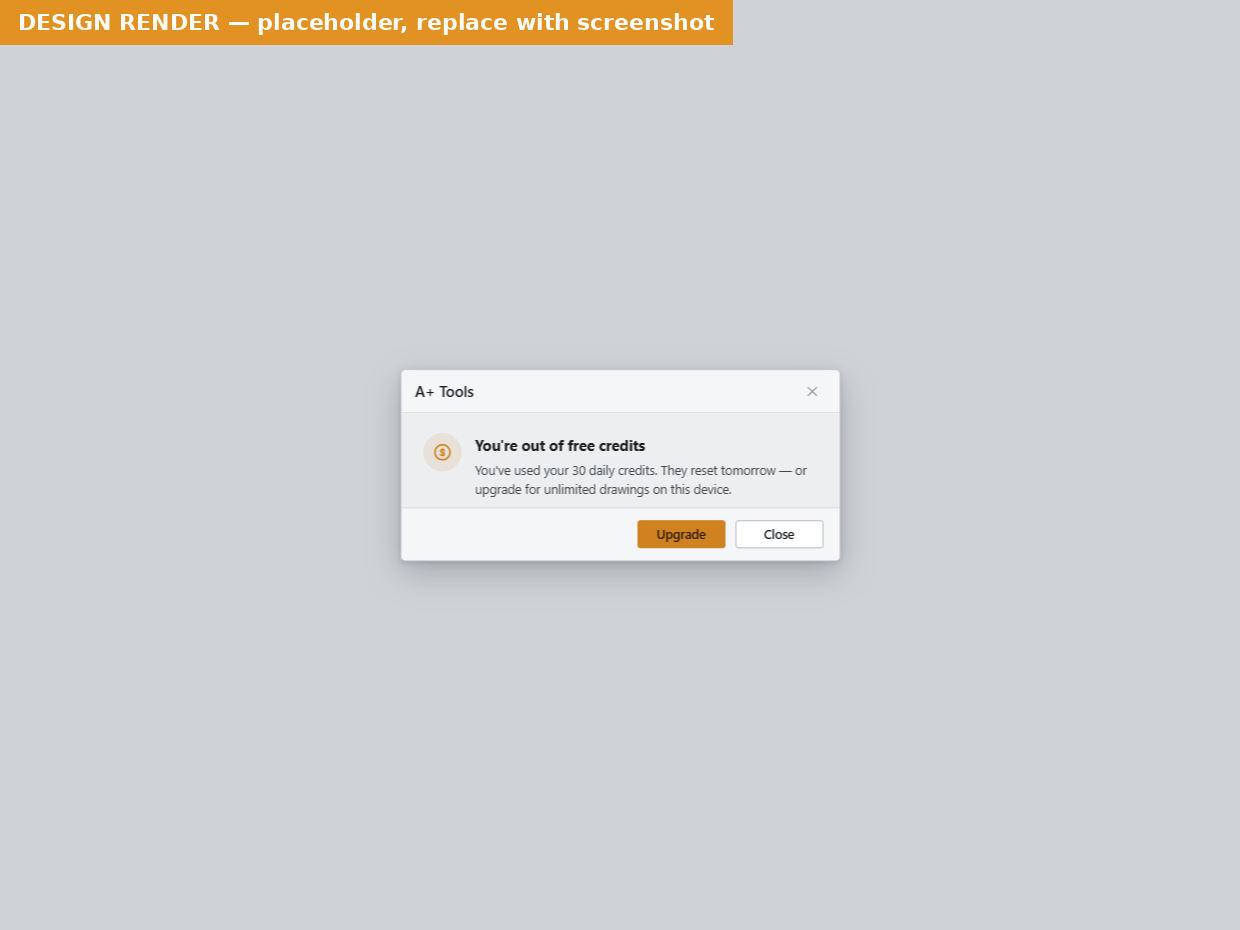 The out-of-credits message.
| Headline | When |
|---|---|
| Not enough credits today | You have credits left today, but fewer than this tool costs. |
| Out of daily free credits | Today's 30 credits are used up, but you have credits left this month. |
| Out of free credits | Your monthly (or whole-trial) credits do not cover the run. |
- Upgrade opens the billing page of the licence portal (signed in) — or the pricing page on a trial — where you can choose a paid plan with unlimited runs.
- Close closes the message. Your daily credits come back at your local midnight; a cheaper tool may still run today.
On a trial the message reads Create a free account or upgrade to continue instead.
Couldn't verify usage
Couldn't verify usage — Your usage could not be verified. — Could not reach Aedificon to verify your free credits. Check your internet connection and try again.
Free accounts and trials have no offline allowance, so A+ Tools must reach Aedificon every time
you run a command. Check your connection (and any proxy or firewall rule blocking
licensing.aedificon.ai) and run the command again. Paid plans do not see this message offline.
Credits could not be charged
Very rarely, the work is created but Aedificon cannot record the charge. You then see Credits could not be charged — The work you just created has been kept, but your account could not be charged for it. Your drawing stays in the model. Until a charge succeeds, the next command shows A+ Tools is blocked — Your last run could not be charged to your account. Check your internet connection and try again; the block also lifts on its own at your local midnight. If it continues, contact support.
Email verification
A new account must confirm its email address before A+ Tools can use it. Until then, signing in shows Please verify your email address — We sent a verification link to your inbox. Click it, return to A+, and then click Sign in below. Click the link in the email, return to Revit and click Sign in again. See Verifying your email address.
When your licence blocks a command
When you are signed in but your licence does not allow the command, A+ Tools explains why and offers the button that fixes it. Most messages also offer Switch account — it signs you out and opens the sign-in window, for when you are signed in with the wrong account.
| Headline | What it means | The button that fixes it |
|---|---|---|
| Device limit reached | All computer places on your licence are taken. | Manage devices — deactivate a computer you no longer use. See Computers. |
| Device change on hold | The licence changed computers recently and is in a cooldown period. | Manage devices, or try again later. |
| Licence expired | Your subscription has ended. | Renew — opens billing in the licence portal. |
| Licence suspended | Your licence is suspended, usually because of a billing problem. | Open Licence portal — check your billing status. |
| No active licence | The account has no active licence — for example your organisation took back your seat. | See plans, or Switch account. Team members: ask your licence administrator. |
| Pro feature | The tool is only included in paid plans. | Upgrade — choose Pro in the licence portal. |
| A+ Tools is blocked — Your licence requires you to be online to run this command. | A Free or trial licence could not reach Aedificon. | Connect to the internet and run the command again. |
| A+ Tools is blocked — Your licence does not currently allow running this command. | Any other licence problem. | Open Licence portal to see what is wrong. |
After fixing the problem in the portal, run the command again — A+ Tools checks again automatically, without a Revit restart.
Payment problems, grace period and expiry
If a subscription payment fails, your paid licence enters a grace period of 7 days in which everything keeps working. If the A+ Tools Licence window opens during this time, it says Your licence is in the grace period. — Update your billing details to avoid interruption. Update your payment details from the Billing page of the licence portal. If the payment does not go through in time, the licence expires and commands show Licence expired.
Roles in an organisation
On Team & Enterprise plans, About A+ shows your role in the organisation (Roles):
| Role | In A+ Tools |
|---|---|
| Organisation member | Uses the organisation's settings and its central repository; cannot change the central repository. |
| Organisation administrator (name) | Manages the organisation in the licence portal. |
| · Repository manager (added to the role) | May change the organisation's central repository (Plugin settings › Browse…) and publish settings profiles to it. |
| Individual licence holder | Not part of an organisation. |
Roles are given in the licence portal by an organisation administrator (Admins, License admins, Repository admins) — see Organisation and team. A+ Tools picks up a changed role the next time it checks your licence.
Signing out
A+ Tools › Log out removes your sign-in and the stored licence information from this computer for your Windows user. It does not deactivate the computer on your licence and does not sign you out of the licence portal in your browser. See Moving to another computer.
Privacy — what A+ Tools sends
A+ Tools talks only to Aedificon's licensing service (licensing.aedificon.ai) and the
Aedificon sign-in service. It sends:
| What | Why |
|---|---|
| Your sign-in (a secure token from the browser sign-in — never your password) | To know which account is using the licence. |
| A computer fingerprint — a one-way scrambled code made from hardware and Windows identifiers; the identifiers themselves are not sent and cannot be recovered from it | To recognise the computer as one of your devices, and to allow one trial per computer. |
| The computer's name | So you can recognise your computers on the Devices page. |
| Your Autodesk user name, when you are signed in to Autodesk in Revit | To allow one trial per Autodesk account and to show the connected Autodesk account in the portal. |
| Your Revit version and A+ Tools version | To match your licence and check for updates. |
| Your time-zone offset | So your daily credits reset at your local midnight. |
| The name of the tool you run (Free and trial) | To charge the right number of credits. |
A+ Tools does not send your models, drawings, file names or settings. The one exception is the central repository path, which is sent when a repository administrator changes it for the organisation. Your sign-in is stored in Windows Credential Manager, encrypted for your Windows user; log files never contain it.
Tips
Tip — On a Free account, plan your day: two drawing packages use 30 credits. Use Redimension Elevation (5 credits) instead of re-creating the whole package when only the wall's dimensions have changed.
Tip — Going somewhere without internet on a paid plan? Start Revit once while online before you leave — the 7 offline days count from the last successful check.
Tip — Undo does not refund credits: the charge is for the work A+ Tools did. Check your settings on a test wall before running a big batch.
Tip — Fixed a licence problem in the portal? Just run the command again — no Revit restart needed.
Messages you might see
| Message | What it means | What to do |
|---|---|---|
| Out of free credits / Out of daily free credits / Not enough credits today | Your credits do not cover this tool. | Wait for the reset, use a cheaper tool, or Upgrade. More |
| Couldn't verify usage | No connection to Aedificon (Free and trial need one every run). | Check your connection and try again. More |
| Credits could not be charged | The work was kept but the charge failed. | Check your connection; contact support if it repeats. More |
| Please verify your email address | Your email address is not confirmed yet. | Click the link in the email, then Sign in. More |
| Device limit reached | All computer places are taken. | Manage devices. More |
| Licence expired / Licence suspended / No active licence | Your licence does not allow running commands. | Use the button in the message. More |
| Pro feature | The tool needs a paid plan. | Upgrade. |
| Licence error — Unable to verify your A+ Tools licence. | Something unexpected went wrong while checking the licence. | Try again; if it repeats, send the log file to support. |
| This tool is not available on the Free plan. Upgrade to continue. | The tool is not part of the Free plan. | Upgrade. |
| The Aedificon service is busy. Please try again in a few seconds. | Too many requests at once. | Wait a moment and try again. |
The full list is in Messages and troubleshooting.
Related pages
Last updated 2026-10-02.