

The A+ Tools menu on the Aedificon panel is where you manage A+ Tools itself rather than your drawings: your licence and account, the plugin's language and repository locations, the version you are running and whether a newer one is available. It is also where you sign in and out. None of the menu items cost credits, and most work even when you are not signed in.
| Where | A+ Tools tab › Aedificon panel › A+ Tools |
| You select | Nothing — the menu items work in any view |
| You get | Your licence portal, plugin settings, version and licence information, update checks, sign-in and sign-out |
| Credits (Free licence) | None — see Licensing and credits |
 The A+ Tools menu, signed in.
The menu at a glance
| Item | What it does |
|---|---|
| Licence portal | Opens your account in the web licence portal — already signed in. More |
| Plugin settings | Plugin language, repository locations, local settings file, log folder and logging level. More |
| Help | Opens this help. More |
| Support | Opens the Aedificon support page in your browser. More |
| About A+ | Version number and a summary of your licence and credits. More |
| Check for updates | Checks whether a newer A+ Tools version is available. More |
| your name | Shows who is signed in (greyed out — it is information only). A dash (-) means nobody is signed in. More |
| Sign in / Log out | Only one of them is shown: Sign in while you are signed out, Log out while you are signed in. More |
Licence portal
Opens the Aedificon licence portal in your default browser, where you manage your plan, credits, computers (devices), billing and — for teams — your organisation. Everything you can do there is described in The licence portal.
- Signed in: A+ Tools opens the portal already signed in with the same account, using a one-time link, so you are not asked for your password again. If that link cannot be created (for example you are offline), the normal portal sign-in page opens instead.
- On a trial: you have no account yet, so the portal opens your trial's status page, with the trial end date, your remaining credits and the options to register or upgrade.
- Signed out: the portal opens on its sign-in page.
Note — The one-time link works once and only for a short time. If you bookmark the page the browser lands on, use the bookmark only after signing in to the portal in that browser.
Plugin settings
Opens the Plugin Settings window with the preferences that belong to you and this computer — not to a project. (The settings of the tools themselves are in the Settings Manager.) Changes are saved when you click OK; Cancel discards them.
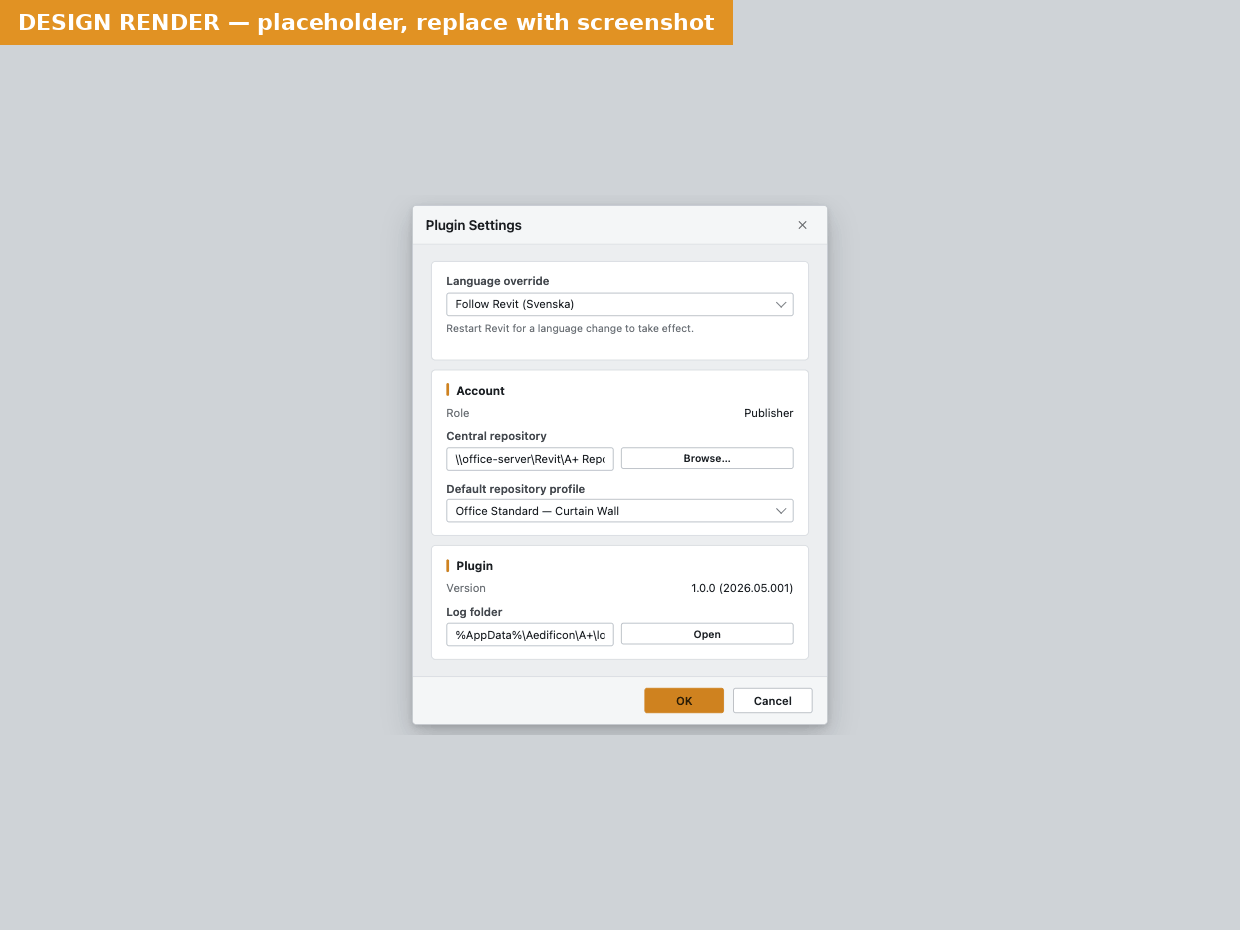 The Plugin Settings window.
Plugin Language
| Setting | What it does | Default / tip |
|---|---|---|
| Plugin language: | The language of every A+ Tools window, message and ribbon label. (Use Revit language) follows the language Revit runs in; pick a language from the list to use that one instead. | (Use Revit language). A+ Tools is available in 13 languages; when Revit runs in a language A+ Tools does not have, it uses English. |
Important — A language change takes effect after you restart Revit.
Repositories
A repository is a Revit template file (.rte) that holds settings profiles and the types and
styles they use — a sample project with default settings. The section shows the repositories
this computer uses. How repositories work is explained in
Settings profiles and repositories.
| Setting | What it does | Default / tip |
|---|---|---|
| Template repository (Trial, Free, Pro and Perpetual) | Your own repository file where you can keep your default settings. Click Browse… and pick a .rte file. The path is stored on this computer only. |
(not configured). Pick a file on a shared drive if you want to use the same defaults on several computers. |
| Central repository (Team & Enterprise) | Your organisation's shared repository for this Revit year. It is set for the whole organisation and every member picks it up automatically. | Set by your organisation. Only repository administrators see Browse… — see below. |
| Sample repository | The sample repository that A+ Tools installs and seeds new projects' settings from. Read-only here. | C:\ProgramData\Aedificon\A+ for Revit 2026\A+ Tools Default Local Repository for Revit 2026.rte. If the file has been moved or deleted, the path is shown in red with (file not found) — repair or reinstall A+ Tools. |
Changing the organisation's central repository (repository administrators)
- In Repositories, click Browse… next to Central repository.
- Pick the
.rtefile and click Open. The new path is shown in the window. - Click OK. A+ Tools sends the path to Aedificon so it applies to the whole organisation; only when that succeeds is it saved. Every member picks it up the next time they start Revit.
If the change cannot be saved, the window stays open with Central repository not changed and the reason — Your account may not change the organisation's central repository (ask a repository administrator) or The new path could not be saved for the organisation (check your internet connection and try again). Nothing is changed in either case.
Tip — Each Revit year has its own central repository path, because a Revit template saved in a newer Revit cannot be opened in an older one. Set the path in each Revit edition you use. Administrators can also set the paths in the licence portal — see The licence portal.
Local settings and logs
| Setting | What it does | Default / tip |
|---|---|---|
| Local settings | The path of your personal settings file (Settings.xml). Open opens it in its default editor (or its folder). |
%LOCALAPPDATA%\Aedificon\A+ for Revit 2026\Settings.xml. You rarely need to edit it — everything in it is set in this window. |
| Log folder | The folder with A+ Tools' log files, one per day. Open opens the folder in File Explorer. | %LOCALAPPDATA%\Aedificon\A+ for Revit 2026\logs. Logs are kept for 30 days. Attach the latest file when you contact support. |
| Logging level: | How much detail A+ Tools writes to the log: Errors only, Normal or Verbose (detailed troubleshooting). | Normal. Takes effect immediately, no restart needed. Switch to Verbose only while reproducing a problem for support — it produces large log files — then set it back. |
Note — Log files are always written in English, whatever the plugin language, so support can read them. They never contain your password or sign-in tokens.
Help
Opens this help.
Support
Opens the Aedificon support page, www.aedificon.ai/support, in your browser. When you ask for help, include:
- what you did and what you expected,
- the exact message text (or a screenshot),
- the log file from Plugin settings › Log folder › Open (the file named with today's date),
- the version from About A+.
About A+
Opens About A+ Tools: the version you are running and a Licence card summarising your licence. The rows that appear depend on your plan.
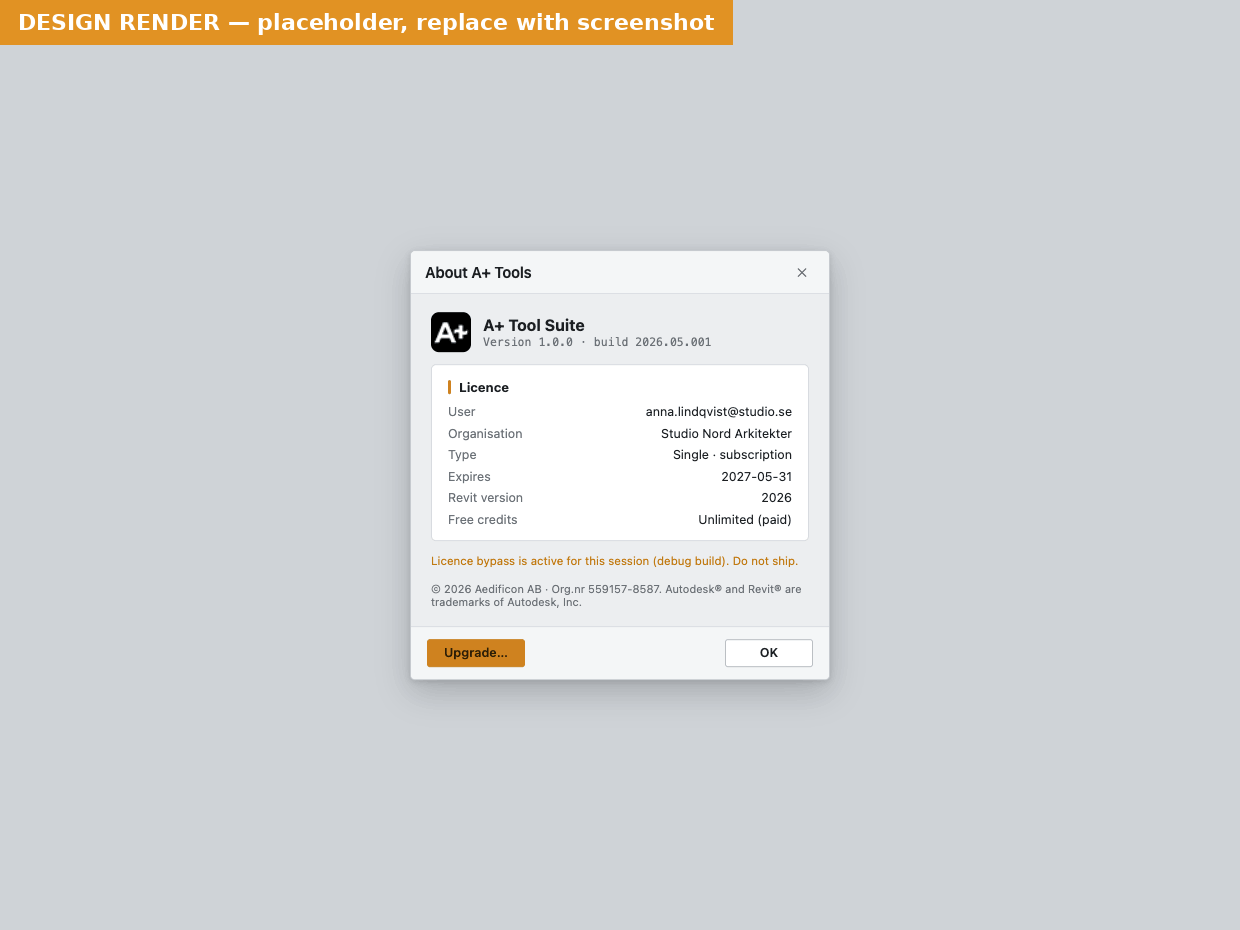 About A+ Tools on a paid licence.
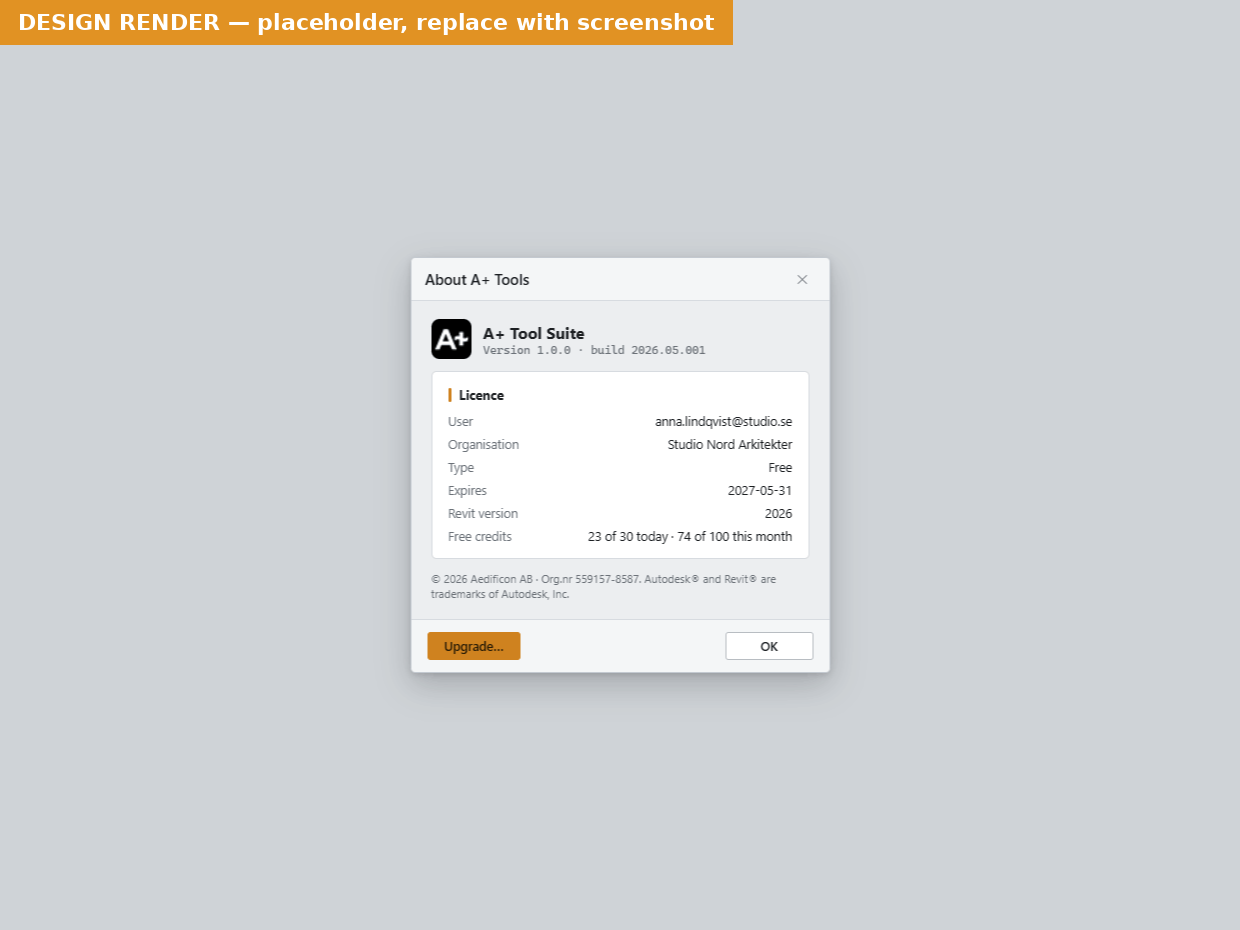 About A+ Tools on a Free licence.
| Row | What it shows |
|---|---|
| User | The name (or email) of the signed-in account, or Not signed in. |
| Plan | Trial, Free, Pro, Team & Enterprise or Perpetual. Checking… while the licence is still being confirmed after Revit started. |
| State | Signed-in — normal. Online — on a trial, connected. Not signed in. Offline (n days left of the offline grace period) — a paid licence working without a connection; it keeps working for that many days. Offline (A+ tools disabled) — no connection and no offline allowance (Free and trial always need a connection). |
| Organisation | Your organisation's name. Team & Enterprise plans only. |
| Roles | Your role in the organisation: Organisation member, Organisation administrator (name), or — outside an organisation — Individual licence holder; · Repository manager is added when you may manage the central repository. Team & Enterprise plans only. |
| Last signed in | When this computer last confirmed your sign-in, in your local time with the time-zone offset. |
| Expires | On a trial: the date the trial ends. On Free and Perpetual: Never. Not shown on subscriptions — see the renewal date in the licence portal. |
| Free credits / Trial credits | Free and trial only. Free shows "X used (of Y credits)" for the current month; a trial shows the same for the whole trial. Before A+ Tools has heard the limits from Aedificon it shows the remaining credits instead (for example "12 today · 70 this month"). |
Upgrade… (Free and trial only) opens the billing page of the licence portal — already signed in — where you can choose a paid plan. On a trial it opens the pricing page on www.aedificon.ai. OK closes the window.
Tip — The credits row shows the balance A+ Tools last heard from Aedificon. It is refreshed every time you run a tool that costs credits; the licence portal always shows the live figure.
Check for updates
Asks Aedificon whether a newer version of A+ Tools is published for your Revit year, and always tells you the answer. You do not need to be signed in.
| Answer | What you see | What to do |
|---|---|---|
| Up to date | You are up to date. — You are running the latest version of A+ Tools (version). | Nothing. |
| Update available | A new version of A+ Tools is available. — Version x is available. You are running y. with Upgrade and Close. | Click Upgrade to download the new installer in your browser, then close Revit and run it. See Upgrading. |
| Service unreachable | Could not check for updates. — The update service could not be reached. Please try again later. | Check your internet connection and try again later. |
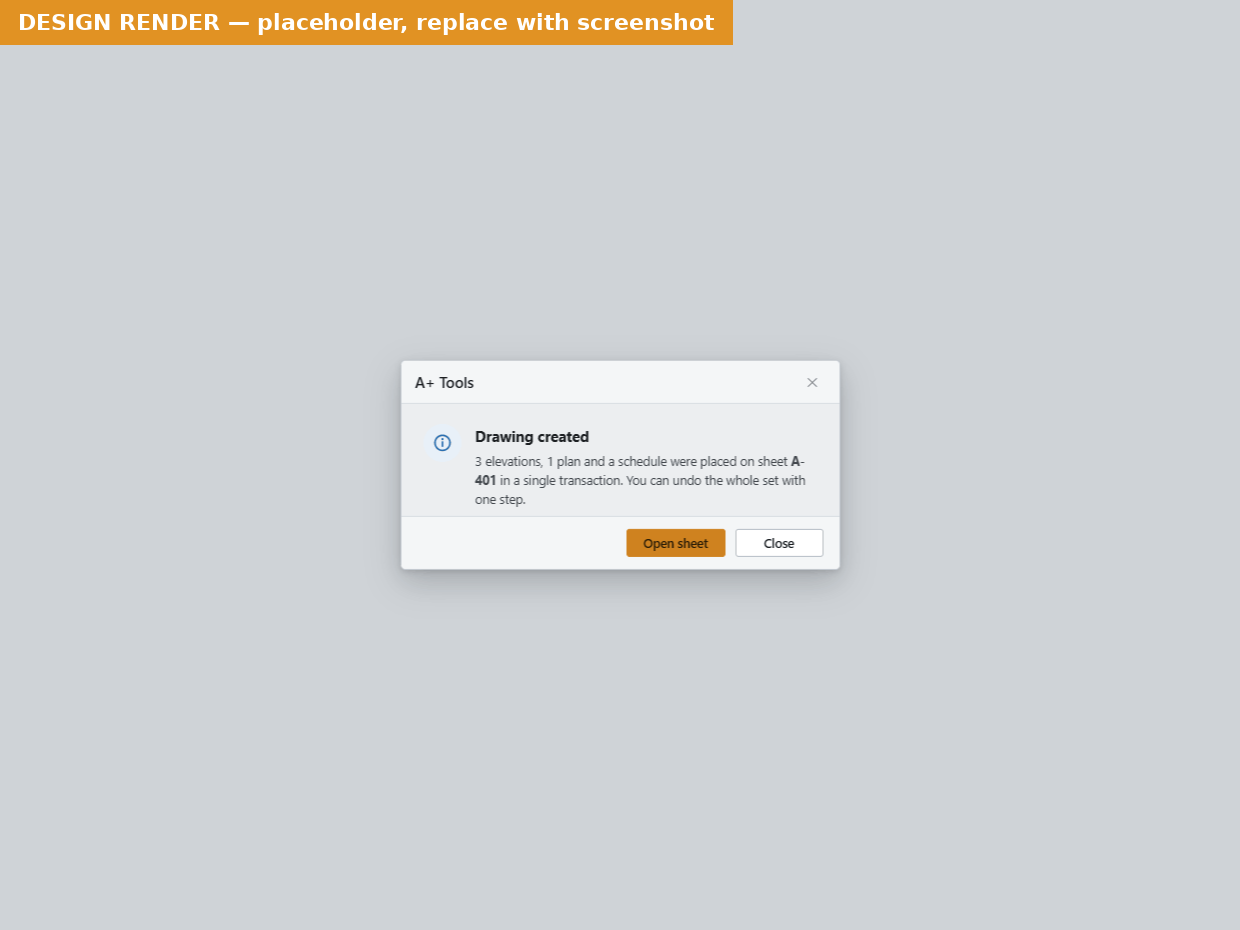 The update dialog as shown when Revit starts.
The update notice when Revit starts
When a newer version is available, A+ Tools shows the same update dialog shortly after Revit starts, with one extra button:
- Upgrade — opens the download of the new installer in your browser.
- Remind me again in 30 days — hides the notice at start-up for 30 days. Check for updates still answers whenever you ask.
- Close — closes the notice; it appears again the next time you start Revit.
If the installed version is no longer supported, Revit start-up shows Update required — This version is no longer supported. Please update to (version) to continue. This notice cannot be snoozed — it appears every time Revit starts until you update. Use Check for updates › Upgrade to download the new version, then install it.
Tip — Upgrading keeps your settings, your sign-in and your install folder. Close Revit before you run the new installer.
Your account, Sign in and Log out
Below the separator, the menu shows who is signed in on this computer:
- Your name — the account currently signed in. The item is greyed out; it is there for information. A dash (-) means nobody is signed in (also during a trial).
- Sign in — shown only while you are signed out. Opens the A+ Tools Licence window, where you can sign in, create an account or (on eligible computers) start the 14-day trial. The steps are in Getting started.
- Log out — shown only while you are signed in. Signs you out on this computer: your sign-in, your offline licence information and the cached licence status are removed, and the drawing tools are greyed out until you sign in again.
Important — Log out does not free this computer's place on your licence. To move your licence to another computer, also deactivate this one in the licence portal under Devices — see Moving to another computer.
Note — Log out does not sign you out of the licence portal in your browser. Sign out there separately if you share the computer.
Tip — To switch to a different account, choose Log out, then Sign in. If the browser signs you straight back in with the old account, sign out of the licence portal in the browser first. When A+ Tools tells you a licence is blocked, the message also offers Switch account.
Tips
Tip — Reporting a problem? Set Logging level: to Verbose (detailed troubleshooting), reproduce the problem, attach the newest log file to your support request, then set the level back to Normal.
Tip — Checking whether your Free credits will last the day? About A+ shows your monthly usage; the licence portal shows the exact balance.
Tip — Testing the plugin in another language without changing Revit? Set Plugin language:, restart Revit, and switch back to (Use Revit language) when you are done.
Messages you might see
| Message | What it means | What to do |
|---|---|---|
| You are up to date. | No newer version is published for your Revit year. | Nothing. |
| A new version of A+ Tools is available. | A newer version is published. | Upgrade, or Remind me again in 30 days at start-up. |
| Could not check for updates. | The update service could not be reached. | Check your connection; try again later. |
| Update required — This version is no longer supported. | Your version must be updated. | Download and install the new version. |
| Central repository not changed | The organisation's central repository path could not be changed. | Read the reason: ask a repository administrator, or check your connection and try again. |
| Sample repository shown in red with (file not found) | The installed sample repository has been moved or deleted. | Repair or reinstall A+ Tools. |
Licence-related messages are explained in Licensing and credits; the full list is in Messages and troubleshooting.
Related pages
- Getting started
- Licensing and credits
- The licence portal
- Settings profiles and repositories
- Settings Manager
- Messages and troubleshooting
Last updated 2026-10-02.